17 / 20Module 2: The Unity project
Project scaffold
You will build the skeleton of the Tic Tac Toe game in Unity here. The game mechanics are mocked for now, so the focus is on layout and design.
Overview
The game has three main parts:
- Game board: a 3x3 grid where players place their marks.
- UI elements: one button per grid cell, plus a text display that shows the game status.
- Game logic: scripts that track whose turn it is, detect a winner, and maintain the game state.
Set up the basic layout
Pages
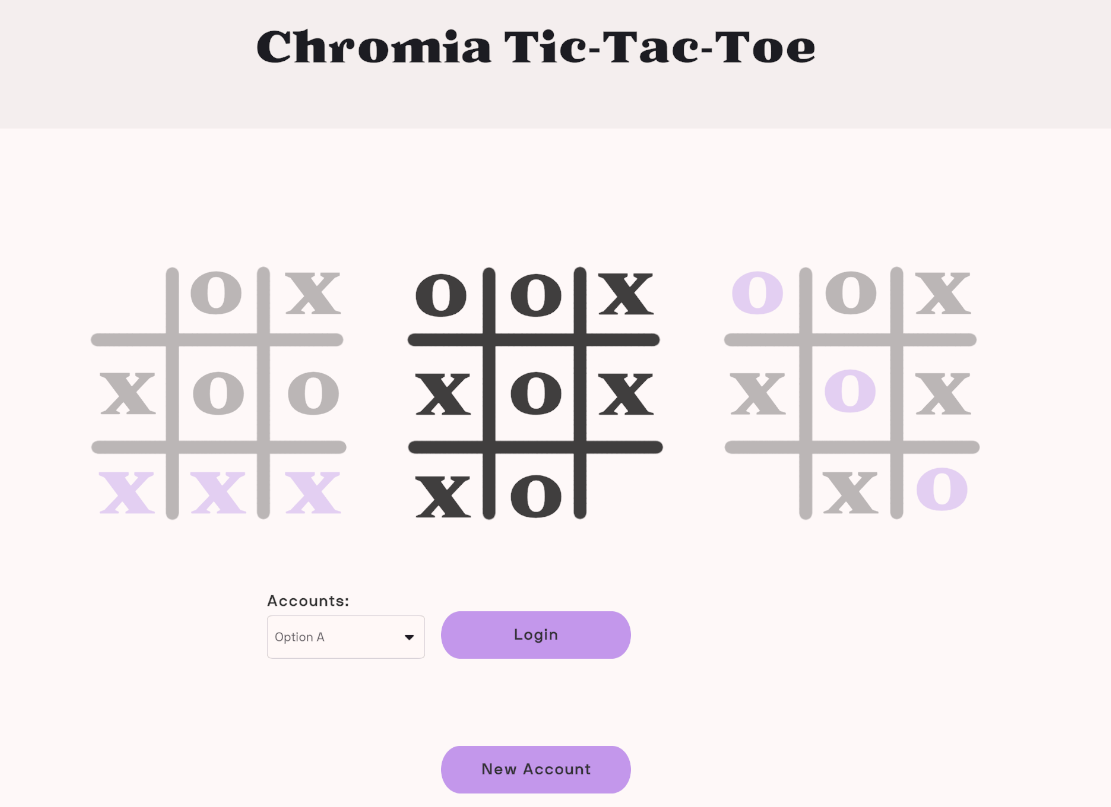
- Login page
-
Lets users either register a new account or sign in with an existing one.
-
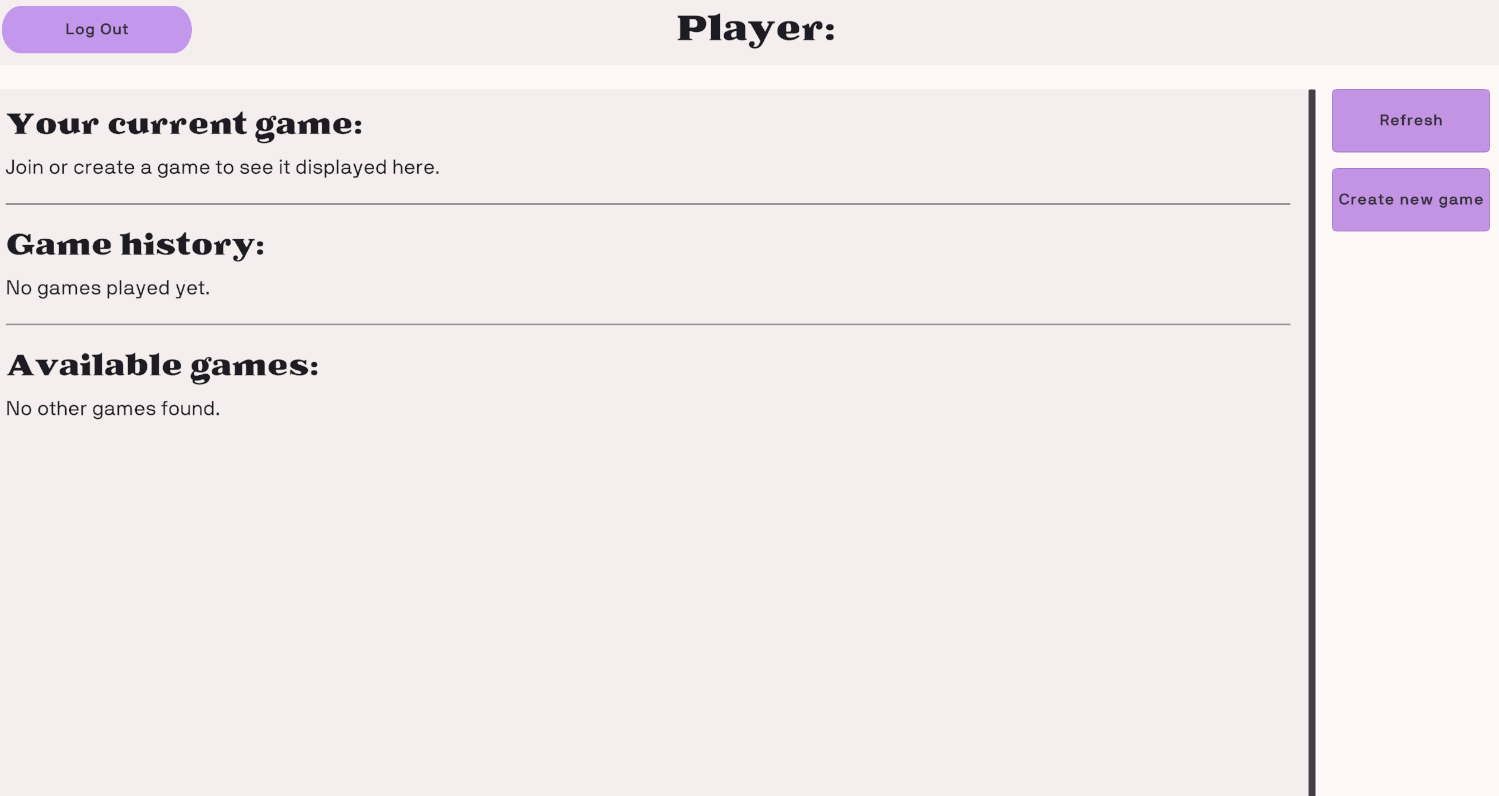
- Lobby page
-
Lists matches that are in progress and matches that have finished.
-
Lets users start a new match or join one.
-
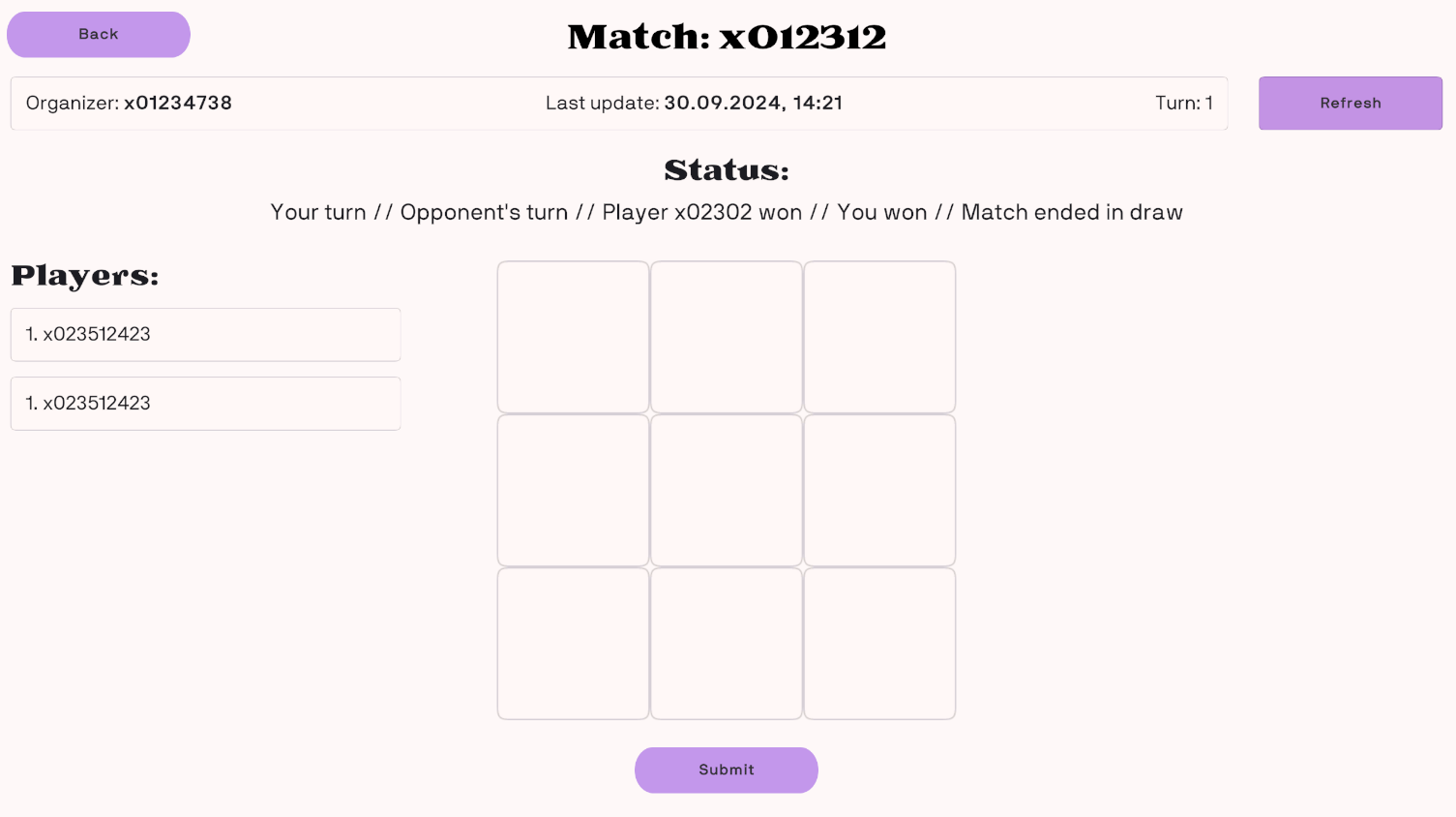
- Game page
-
Where the Tic-Tac-Toe match itself takes place.
-
Contains the game board, the UI elements, and live updates as the game progresses.
-
Set up the ServiceLocator
The ServiceLocator is a single place where the game's core services and managers are created and held. Other classes get those services from it instead of instantiating them repeatedly, which keeps the code modular.
Steps to set up the ServiceLocator:
-
Create a
GameObject:- Add an empty
GameObjectto your Unity scene. - Give it a clear name, such as
ServiceLocator. - Attach the
ServiceLocatorscript to it.
- Add an empty
-
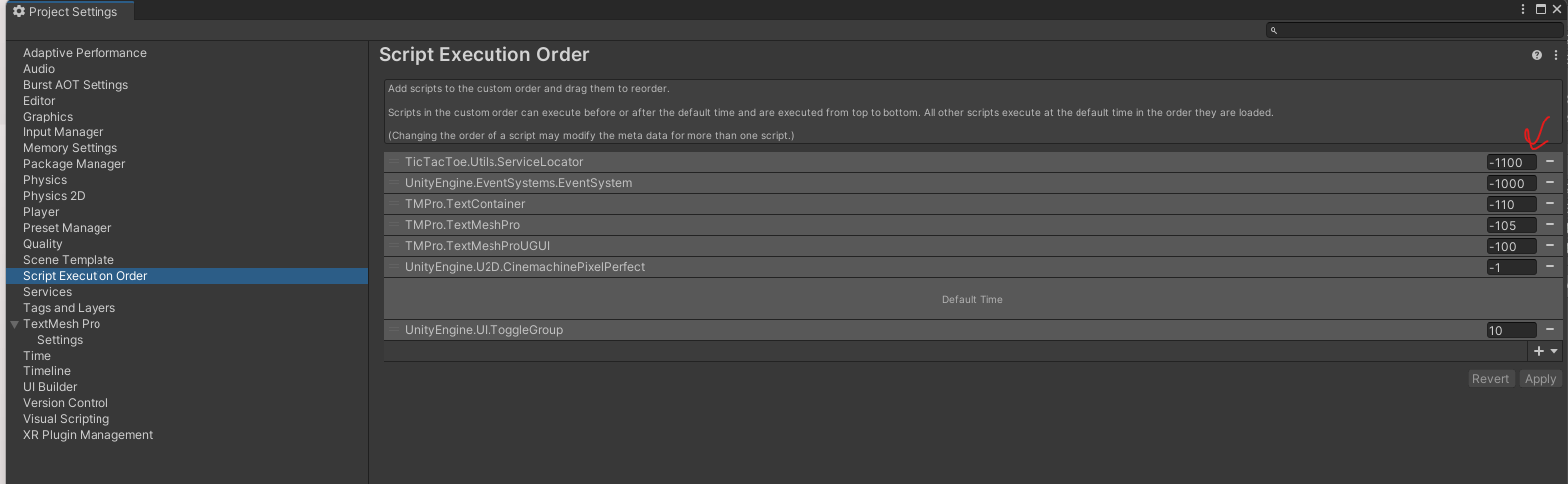
Set script execution order:
-
Open Edit → Project Settings → Script Execution Order.
-
Add the
ServiceLocatorscript and drag it to the top of the list. -
Placing it first means it initializes before anything else, so its services are ready whenever other components request them.
-
-
Understand the role of
ServiceLocator:- Open the
ServiceLocatorscript and look at what it contains. It creates instances of services such asBlockchainService,GameService, andUIManager, and the script's comments describe each one. A short summary follows:
- Open the
Services in ServiceLocator
-
UIManager:- Controls every UI element in the game, including menus, notifications, and interactions with the player interface.
- Because of the
[SerializeField]attribute, you can assign theUIManagerin the Unity editor.
csharp [field: SerializeField] public UIManager UIManager { get; private set; } -
LocalStorageService:- Stores data on the player's device and reads it back.
- Typical examples are player progress, game settings, and cached data.
- You create it inside the
SetupServices()method:
csharp LocalStorageService = new LocalStorageService();LocalStorageService.Initialize(); -
BlockchainService:- Takes care of blockchain operations, such as connecting to a blockchain network and sending transactions.
- Its initialization can require network calls, so it runs asynchronously (
await BlockchainService.Initialize()).
csharp BlockchainService = new BlockchainService();await BlockchainService.Initialize(); -
GameService:- Holds the core game logic and works with other services, for example using the blockchain to persist game state or submit transactions.
- It requires the
BlockchainService, which you pass into its constructor when you create it:
csharp GameService = new GameService(BlockchainService);
Create the game board
Use the following steps to start building the UI for your Tic Tac Toe game.
Set up the UIManager
First, create a UIManager to control the game's views (pages). It switches between views and acts as the parent container for all UI elements.
-
What it does: The
UIManagercontains several views, such as the login screen, the game board, and result screens. It reacts to events like button clicks to move from one page to another. -
Example: A method in the
LoginViewcould look like this:csharp public async void OnNewAccountButton(){ var blockchainService = ServiceLocator.Instance.BlockchainService; var newAccountData = await blockchainService.OpenStrategyRegisterAccount();}Here, the
BlockchainServiceis used to create a new blockchain account.
Visualize the structure
-
Your UI hierarchy should resemble the following:
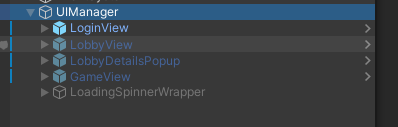
-
Each view has a script containing the logic for its UI interactions, for example:

Set up the game grid in Unity
-
Create an object
- In the
EditorHierarchy, add an emptyGameViewobject as a child of theUIManager.
- In the
-
Add a
Canvas-
Create a new
Canvasfrom the Hierarchy panel. All of your UI elements will sit under it. -
Set the Canvas render mode to Screen Space - Overlay, the usual choice for a standard UI.
-
-
Add a
GridPanel-
Add a
Panelinside theCanvasand rename itGridPanel. -
Resize it to cover the area the game grid should occupy.
-
Add a grid layout
- Select
GridPanelin the Hierarchy. - In the Inspector, add a Grid Layout Group component.
- Configure the Grid Layout Group as follows:
- Cell Size: (100, 100), so every cell is the same size.
- Spacing: (5, 5), to leave a gap between cells.
- Constraint: select Fixed Column Count and set Constraint Count to
3, which produces a 3x3 grid.
Create buttons for the grid cells
- Add a
ButtonunderGridPaneland rename it "Cell1". - Size the button to fit a cell (for example, 100x100).
- Duplicate it eight times so you have nine buttons in total.
- Give the copies sequential names ("Cell2", "Cell3", and so on).
Add a status text
- Add a
Textelement to the Canvas and place it aboveGridPanel. - Rename it
StatusTextand give it a starting value such as "Player X's Turn". - Tweak the font size, alignment, and color so it is easy to read.
Connect scripts to the UI
- Write a script, such as
GameView, that connects the UI to the game logic. - Give it methods that refresh the game grid and manage player turns.
- Attach the script to an empty
GameObjectcalledGameView.
Set up Tic Tac Toe game scripts in Unity
Create the scripts folder
- Right-click in the Project panel and choose Create > Folder.
- Call it
Scriptsso your game scripts stay in one place.
Game logic overview
GameViewscript: acts as the game's UI layer. It responds to button clicks and calls theMakeMove()method on theGameService.GameServicescript: queries games, submits turns, and keeps track of the state of active games.
GameService and GameData
The GameService keeps track of active games and their state, running queries and operations such as turn submission. Every game it fetches is stored as a GameData model:
/// <summary>/// The data received from the blockchain queries related to games./// </summary>public class GameData{ [JsonProperty("id")] public int RowId { get; set; } [JsonProperty("created_by")] [CanBeNull] public byte[] CreatedBy { get; set; } [JsonProperty("created_at")] public string CreatedAt { get; set; } [JsonProperty("player1_account_id")] [CanBeNull] public byte[] Player1 { get; set; } [JsonProperty("player2_account_id")] [CanBeNull] public byte[] Player2 { get; set; } [JsonProperty("last_step_account_id")] [CanBeNull] public byte[] LastStepBy { get; set; } [JsonProperty("last_step_at")] public string LastStepAt { get; set; } [JsonProperty("winner")] [CanBeNull] public byte[] Winner { get; set; } [JsonProperty("status")] public GameStatus Status { get; set; } [JsonProperty("slot_1")] public SlotState Slot1 { get; set; } [JsonProperty("slot_2")] public SlotState Slot2 { get; set; } [JsonProperty("slot_3")] public SlotState Slot3 { get; set; } [JsonProperty("slot_4")] public SlotState Slot4 { get; set; } [JsonProperty("slot_5")] public SlotState Slot5 { get; set; } [JsonProperty("slot_6")] public SlotState Slot6 { get; set; } [JsonProperty("slot_7")] public SlotState Slot7 { get; set; } [JsonProperty("slot_8")] public SlotState Slot8 { get; set; } [JsonProperty("slot_9")] public SlotState Slot9 { get; set; }}Update slots in GameView
Every grid cell has a TicTacToeSlot component. The UpdateSlots method in the GameView script refreshes these slots:
private void UpdateSlots(){ var canUserSubmit = _gameData.Status is GameStatus.Active && Buffer.From(_gameData.LastStepBy) != _blockchainService.UserAccountId; _slots[0].SetData(_gameData.Slot1, canUserSubmit, (isSelected) => OnSelected(isSelected, 0)); _slots[1].SetData(_gameData.Slot2, canUserSubmit, (isSelected) => OnSelected(isSelected, 1)); _slots[2].SetData(_gameData.Slot3, canUserSubmit, (isSelected) => OnSelected(isSelected, 2)); _slots[3].SetData(_gameData.Slot4, canUserSubmit, (isSelected) => OnSelected(isSelected, 3)); _slots[4].SetData(_gameData.Slot5, canUserSubmit, (isSelected) => OnSelected(isSelected, 4)); _slots[5].SetData(_gameData.Slot6, canUserSubmit, (isSelected) => OnSelected(isSelected, 5)); _slots[6].SetData(_gameData.Slot7, canUserSubmit, (isSelected) => OnSelected(isSelected, 6)); _slots[7].SetData(_gameData.Slot8, canUserSubmit, (isSelected) => OnSelected(isSelected, 7)); _slots[8].SetData(_gameData.Slot9, canUserSubmit, (isSelected) => OnSelected(isSelected, 8));}Implement the GameView script
The GameView processes player input and refreshes the game board:
using System.Collections.Generic;using _TicTacToe.Scripts.Models;using Chromia;using TicTacToe.Services;using TicTacToe.Utils;using TMPro;using UnityEngine;using UnityEngine.UI;namespace TicTacToe.UI{ /// <summary> /// The main game view where users play Tic-Tac-Toe and can submit turns. /// </summary> public class GameView : MonoBehaviour { [SerializeField] private TMP_Text _header; [SerializeField] private TMP_Text _organizerText; [SerializeField] private TMP_Text _lastActionAtText; [SerializeField] private TMP_Text _currentTurnText; [SerializeField] private TMP_Text _player1; [SerializeField] private TMP_Text _player2; [SerializeField] private TMP_Text _gameStatus; [SerializeField] private List<TicTacToeSlot> _slots; [SerializeField] private GameObject _submitButton; [SerializeField] private Button _refreshButton; private UIManager _uiManager; private GameService _gameService; private BlockchainService _blockchainService; private GameData _gameData; private int _slotToSubmit = -1; private void OnEnable() { _uiManager ??= ServiceLocator.Instance.UIManager; _gameService ??= ServiceLocator.Instance.GameService; _blockchainService ??= ServiceLocator.Instance.BlockchainService; } public void SetData(GameData gameData) { _gameData = gameData; UpdateView(); } public void OnBackButton() { _uiManager.OpenLobby(); } public void OnRefreshButton() { Refresh(); } public async void OnSubmitButton() { if (_slotToSubmit < 0) return; _uiManager.ToggleLoadingSpinner(true); var success = await _gameService.MakeMove(_gameData.RowId, _slotToSubmit); _uiManager.ToggleLoadingSpinner(false); if (success) Refresh(); } private async void Refresh() { _uiManager.ToggleLoadingSpinner(true); _gameData = await _gameService.GetGameById(_gameData.RowId); _uiManager.ToggleLoadingSpinner(false); UpdateView(); } private void UpdateView() { _header.text = $"Match: {_gameData.RowId}"; _organizerText.text = $"Organizer: <b>{UIUtils.GetShortenedAccountId(_gameData.CreatedBy)}"; _lastActionAtText.text = $"Last update: <b>{UIUtils.GetUnixTimestamp(_gameData.LastStepAt)}"; _currentTurnText.text = $"Turn: {UIUtils.GetTurn(_gameData)}"; var isUserPlayer1 = Buffer.From(_gameData.Player1) == _blockchainService.UserAccountId; _player1.text = $"1. {UIUtils.GetShortenedAccountId(_gameData.Player1)} ( <b>{(isUserPlayer1 ? "You" : "Opponent")} ) <color=purple> O"; _player2.text = $"2. {UIUtils.GetShortenedAccountId(_gameData.Player2)} ( <b>{(isUserPlayer1 ? "Opponent" : "You")} ) <color=purple> X"; _gameStatus.text = UIUtils.GetGameStatus(_gameData, _blockchainService.UserAccountId); _submitButton.SetActive(false); _slotToSubmit = -1; _refreshButton.interactable = _gameData.Status is GameStatus.Active; UpdateSlots(); } private void UpdateSlots() { var canUserSubmit = _gameData.Status is GameStatus.Active && Buffer.From(_gameData.LastStepBy) != _blockchainService.UserAccountId; _slots[0].SetData(_gameData.Slot1, canUserSubmit, (isSelected) => OnSelected(isSelected, 0)); _slots[1].SetData(_gameData.Slot2, canUserSubmit, (isSelected) => OnSelected(isSelected, 1)); _slots[2].SetData(_gameData.Slot3, canUserSubmit, (isSelected) => OnSelected(isSelected, 2)); _slots[3].SetData(_gameData.Slot4, canUserSubmit, (isSelected) => OnSelected(isSelected, 3)); _slots[4].SetData(_gameData.Slot5, canUserSubmit, (isSelected) => OnSelected(isSelected, 4)); _slots[5].SetData(_gameData.Slot6, canUserSubmit, (isSelected) => OnSelected(isSelected, 5)); _slots[6].SetData(_gameData.Slot7, canUserSubmit, (isSelected) => OnSelected(isSelected, 6)); _slots[7].SetData(_gameData.Slot8, canUserSubmit, (isSelected) => OnSelected(isSelected, 7)); _slots[8].SetData(_gameData.Slot9, canUserSubmit, (isSelected) => OnSelected(isSelected, 8)); } private void OnSelected(bool isSelected, int index) { _submitButton.SetActive(isSelected); if (isSelected) { _slotToSubmit = index + 1; // Blockchain expects values from 1 to 9 // Unselect all other slots for (int i = 0; i < _slots.Count; i++) { if (i == index) continue; _slots[i].SetSelected(false); } } } }}Set up the game logic
- Attach the
GameViewscript:- Add an empty
GameObjectin the Hierarchy and name itGameView. - Drag the
GameViewscript onto it. - In the Inspector, fill in the
cellsarray (the grid buttons) and thestatusTextfield.
- Add an empty
- Complete the win logic:
- Write the
CheckForWinnermethod so it recognizes winning combinations and updates the game state.
- Write the
Test and refine
- Run the game:
- Press Play in Unity to try the setup.
- Confirm that the grid updates, turns alternate, and the status text changes.
- Debug:
- Fix any problems you find in the game mechanics.
- Enhance:
- Improve gameplay with additions such as animations, sound effects, or a restart button.